
How to Increase Storage on Gaming PC: A Step-by-Step Guide
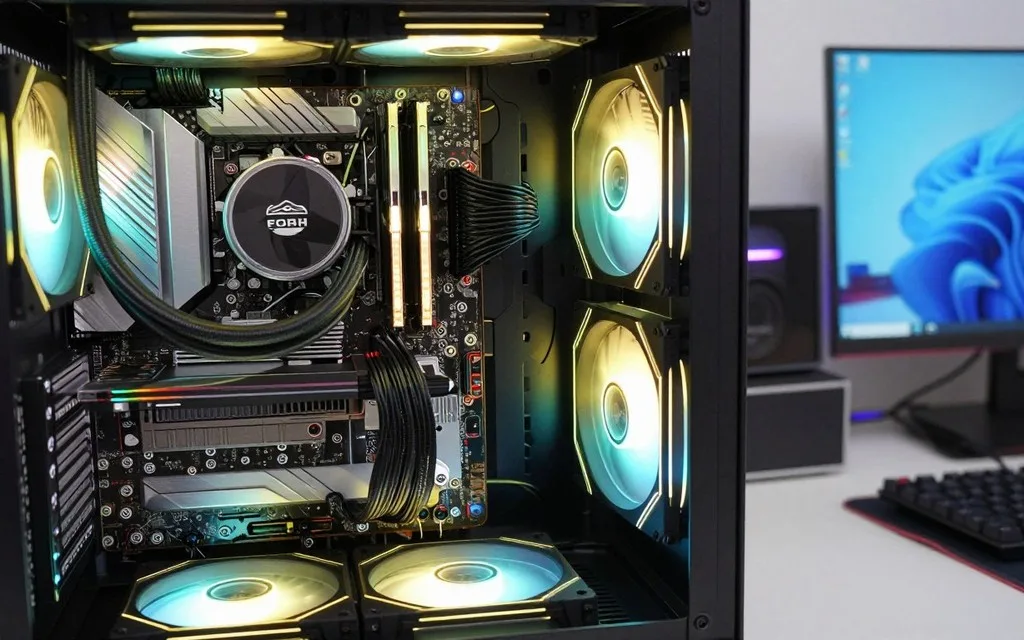
A nearly full game library can force you to uninstall a title just to make room for the next one. Running low on space can interrupt your gaming time and make it harder to keep the games you enjoy ready to play. You can add internal or external storage, set up a new drive safely, or free room on the drive you already use. NVMe is a protocol that lets a supported SSD communicate with a computer over PCIe.
The right choice depends on your current system, how many games you keep installed, and whether you want to open the case. This guide helps you compare practical options and avoid common setup mistakes. The right upgrade starts with knowing how much room your library actually needs.
Key Takeaways
- Choose capacity based on the games you keep installed at once.
- Check your motherboard or laptop model before buying an internal drive.
- Back up important files before hardware changes or disk initialization.
- Set up a new disk in Windows before expecting it in File Explorer.
- Review cleanup options before deleting files you may still need.
How Much Storage Does a Gaming PC Need?
For most gaming PCs, 2TB is the most comfortable starting capacity if you want to keep several modern games installed. A 2TB SSD is a sensible general starting point for most gaming PCs. Your ideal space depends on how many games you play at once and whether you also store recordings or projects.
A 1TB SSD can work if you keep two or three games installed and uninstall titles as needed. The games themselves vary in size, so the same drive may hold fewer large installs than smaller ones. In 2026, Gears of War: E-Day lists a 115GB storage requirement, while recent Modern Warfare 4 installs run past 100GB.
What fits on a 1TB SSD?
For Gaming PC storage at 1TB, expect roughly six to eight games around 100GB each after Windows takes its share. A 1TB SSD holds six to eight games at that approximate size in 2026. That can suit a small rotating library, but it leaves less room for a growing collection or large updates.
| Capacity | Approximate game-library fit | Example use | Trade-off |
|---|---|---|---|
| 1TB | Six to eight games around 100GB each | Two or three games kept installed | Uninstall games as needed |
| 2TB | Roughly 15 modern game installs | Several games with room for patches | More space than a small rotation may need |
| 4TB | Thirty-plus games | Large library, recordings, and projects | More capacity than a smaller collection needs |
A single modern game can require more than 100GB, so leave room for the titles you actually play.
Why 2TB or 4TB suits a larger library
Storage for a gaming PC at 2TB suits a player who wants a broader selection ready to launch. In 2026, a 2TB SSD holds roughly 15 modern game installs at current file sizes, with room for patches. A PC should have 2TB for gaming as a practical baseline if you want several current titles installed together.
A 4TB SSD can hold thirty-plus games, along with recordings and projects. It fits a larger library better than a smaller drive, especially when games share space with other files. Count the games you keep installed at once, rather than the total size of your wish list.
Which Type of Drive Fits Your Gaming PC?
The best all-around internal upgrade for a compatible gaming PC is usually an SSD, with NVMe the fast, compact option when the motherboard supports it. Check an M.2 slot’s protocol, drive form factor, and BIOS support before buying an NVMe SSD. A SATA SSD suits some older systems, while an HDD can add bulk storage at a lower cost.
Internal drives: NVMe, SATA SSD, and HDD
To add more storage to a laptop for gaming, first confirm it accepts an internal drive. Some laptops have soldered storage and cannot take an internal upgrade. Most consumer NVMe SSDs use the 2280 form factor, which measures 22mm wide and 80mm long. Windows 10 and Windows 11 support NVMe natively.
| Drive type | Connection | Good fit | Main limitation |
|---|---|---|---|
| NVMe SSD | M.2 slot over PCIe | Fast internal expansion on a compatible motherboard | Slot, form factor, and BIOS must support it |
| SATA SSD | SATA data and power connections | Compatible older systems or SATA bays | Uses SATA rather than PCIe |
| HDD | SATA data and power connections | Lower-cost bulk storage | Slower than an SSD |
A USB external drive adds space without opening the case, making it useful when internal access is inconvenient. A good Gen 4 SSD and a Gen 5 SSD usually differ by only a second or two in real-world game loading in 2026. For gaming, compatibility and capacity may matter more than that small loading-time gap.
External drives and laptop limits
Drive prices can also shift sharply. In 2026, a 2TB Samsung 990 Evo Plus rose from $113 to $363 in roughly a year, a 221 percent increase. That example describes one named drive’s price movement, not a current price recommendation.
To identify an existing drive, open Device Manager and look under Disk drives for its model name. In Windows 11, Terminal command wmic diskdrive get model,serialNumber,size,mediaType displays the model, serial number, size, and media type. Check the exact motherboard or laptop model before ordering an internal drive.
How to Increase Storage on Gaming PC by Installing a New Drive
Adding a second drive lets you keep the existing Windows drive and its files in place. A separate drive does not require erasing the existing one. Back up important files before hardware work, and never initialize a disk that contains files you need.
Replacing a drive is different from adding one: replacing can put existing data at risk. A disk already in use can also lose its data if you initialize it. Use the PC or motherboard manual to identify the right socket, bay, and mounting method before handling parts.
Prepare the PC and protect existing data
Follow these physical steps to add a drive while leaving the current system drive installed:
- Back up important files to another safe location.
- Shut down the PC and unplug it from power.
- Open the case and locate the M.2 socket or drive bay.
- Install and secure the drive in its socket or bay.
- Connect SATA data and power cables when needed, then close the case.
Fit an M.2 SSD or a SATA drive
An M.2 SSD mounts directly to a motherboard socket, commonly with a screw or latch. Press it into the socket as directed by the manual, then secure it without forcing the component. Internal drive bays commonly accommodate 2.5-inch or 3.5-inch drives, so confirm the bay matches the drive.
SATA drives need a data cable to the motherboard and a power cable from the PSU. Route both cables so they do not block fans or press against moving parts. After closing the case and reconnecting power, check the BIOS for the new drive; if it is not detected, recheck its connections.
If the PC does not have a free compatible connection, stop rather than forcing a drive into place. Keep the backup separate from the PC while you work, so a mistake during installation cannot affect both copies. If you are unsure about opening the case or handling a component, stop and check the PC or motherboard manual before proceeding.
How Do You Set Up a New Drive in Windows?
A newly installed disk may stay invisible in File Explorer until Windows initializes and formats it. Disk Management handles the process in Windows 10 and Windows 11. Initializing a disk already in use erases its data, so back up files and confirm the correct disk first.
A new disk may also need a drive letter before it can store files. Use the steps below for the new, empty drive only. If the disk contains files, do not initialize it as part of this setup.
Initialize a new disk
Windows 10 users can add a hard drive through Disk Management’s initialize, new-volume, drive-letter, and format sequence. Windows uses GPT as the default partition style when initializing a new disk. GPT supports volumes larger than 2TB, which makes it suitable for modern drives.
- Open Disk Management in Windows.
- Initialize the new disk and choose GPT for a modern PC.
- Right-click the disk’s unallocated space and choose New Simple Volume.
- Assign a drive letter when the wizard prompts you.
- Format the volume as NTFS for Windows-only use.
Create a volume and assign its format
After initialization, the New Simple Volume wizard guides you through choosing a volume size and assigning a letter. Keep the suggested size if you want one main volume across the drive. A drive letter helps File Explorer distinguish the new storage from your C: drive.
NTFS is the Windows default file system for a drive used only with Windows. Formatting prepares the volume to store files, so make sure the correct disk is selected before that step. Before confirming any initialization, verify that the selected disk is the new empty drive.
How Can You Free Space Without Buying Another Drive?
Start by checking the available space shown under Devices and drives in File Explorer’s This PC view. Storage Sense can remove unnecessary temporary files from the system drive, usually C:. Review the files Windows proposes to remove before cleaning up.
Use Storage Sense safely
In Windows 11, open Start > Settings > System > Storage to switch Storage Sense on and choose how often it runs. With default settings, it runs when the device is low on disk space and removes unnecessary temporary files. It does not manage Downloads or cloud content unless you configure those options.
Storage Sense works only on the system drive. Manage other drives under Settings > System > Storage > Advanced storage settings > Storage used on other drives. It can delete Recycle Bin content after some time by default, but it does not make OneDrive files marked Always keep on this device online-only.
Storage Sense cannot run unless you are signed in and online for more than 10 minutes. Check its settings before relying on an automatic cleanup schedule. This helps avoid expecting it to clear files or drives outside its configured scope.
Find and review large files
Cleanup recommendations are under Start > Settings > System > Storage > Cleanup recommendations. Review temporary files, large or unused files, cloud-synced files, and unused apps before selecting Clean up. The list lets you choose what to remove instead of deleting everything at once.
In File Explorer, open a folder, choose View > Details, right-click inside it, then select Sort by > Size to find large files. Delete only files you recognize and no longer need. Deleted files do not fully free their space until you empty the Recycle Bin.
Check This PC again after emptying the Recycle Bin to see the updated free space. Review each cleanup recommendation before selecting Clean up so you do not remove a file you still need.
How Do You Keep the New Drive From Filling Up?
A new drive only helps if new content is saved to it. Windows 11 lets you choose a destination drive separately for each type of new content. Keep 10 to 15 percent of an SSD’s capacity free.
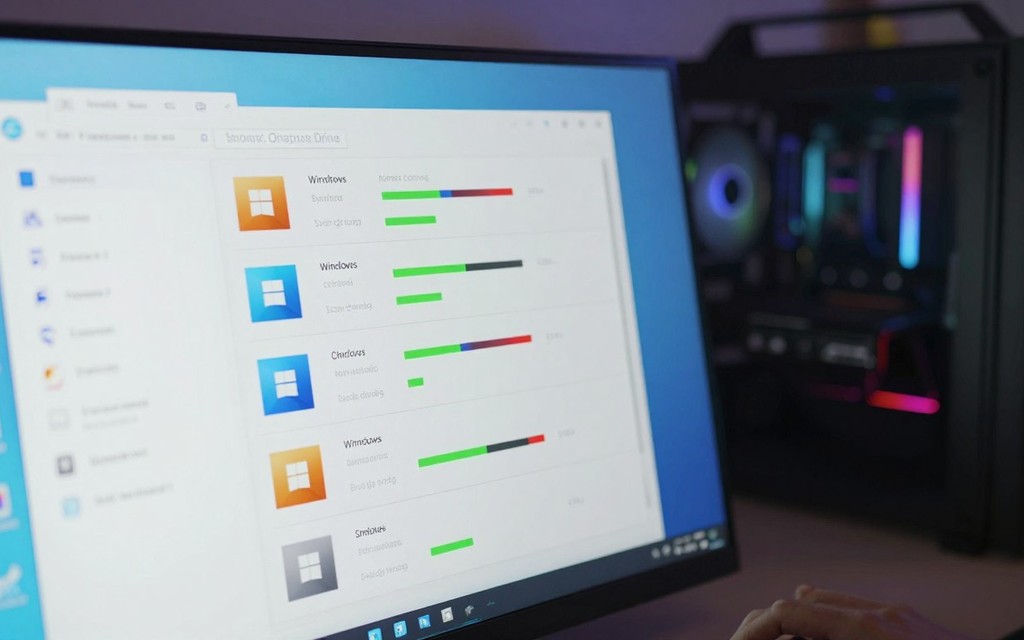
Open Settings > System > Storage > Advanced storage settings > Where new content is saved, then review each destination after adding a drive. Windows lets you select a location for each content type, rather than sending every new file to one place. Set the choices that match how you use the PC.
Use the added space deliberately for large files or games, and check the selected install location before each new download. Some launchers remember a previous folder, so a new install may still go to the old drive.
Leave 10 to 15 percent of the SSD free instead of treating every gigabyte as installable space.
That working room helps keep storage from becoming completely full as files and updates accumulate.
Conclusion
A compatible SSD with enough room for the games you keep installed is the straightforward upgrade for most gaming PCs. Choose a drive that fits your system, and keep a backup before changing hardware or initializing any disk.
You can reclaim space first, or add a separate drive when you need more capacity. Either way, take one practical step before buying: check your motherboard or PC model and confirm the available drive connection before choosing the new drive.
FAQ
How to free up space on a gaming computer?
Use Windows 11 Cleanup recommendations to review temporary files, large or unused files, cloud-synced files, and unused apps. Select only the items you no longer need, then empty the Recycle Bin to reclaim the space deleted files still occupy. You can also sort a folder by size in File Explorer to spot large files worth reviewing.
Is a 256GB hard drive enough?
Usually, 256GB is too little for a growing modern game library. Individual recent games can exceed 100GB, before Windows, updates, and other files use space. A drive that small may suit a limited set of games, but you would need to manage installs closely and remove titles often to make room.
How to locate SSD on computer?
Open Device Manager and check the model names under Disk drives to locate an SSD. In Windows 11, Terminal command wmic diskdrive get model,serialNumber,size,mediaType displays each drive’s model, serial number, size, and media type. The model name can help you distinguish an SSD from another installed drive.
How much storage is best for gaming?
Two terabytes is a recommended starting capacity for most gaming PCs. A 1TB SSD can work if you keep a small rotating set installed, while a 4TB SSD better fits a larger library, recordings, and projects. Choose based on the games you keep installed at once, not every title you might eventually try.
Is 1 TB a lot for a gaming PC?
One terabyte can hold six to eight games around 100GB each after Windows takes its share. It works best if you keep only a few games installed and uninstall titles as needed. Large modern games may exceed 100GB individually, so the real number of installs depends on which titles you choose.
If you want to dig further into pc gamer rust tips and performance guide for, read our PC Gamer Rust Tips and Performance Guide for guide.
If you want to dig further into pc gamer magazine your source for pc gaming n, read our PC Gamer Magazine Your Source for PC Gaming N guide.
If you want to dig further into what is pc gamer completo guide to full gamin, read our What is PC Gamer Completo Guide to Full Gamin guide.



Leave a Reply